


Access the program
Log in to your personal space and access all the club's programs
Log in to the site
Access the Plugin.ch platform by entering your club's web address in your browser's address bar. Each club has its own personalized URL:
Example: argt.plugin.ch
Step 1: Open your browser and type in your club's web address

Step 2: A blue vertical menu appears on the left side of the screen

Step 3: To expand the full menu, click the three blue bars (≡) at the top of the menu
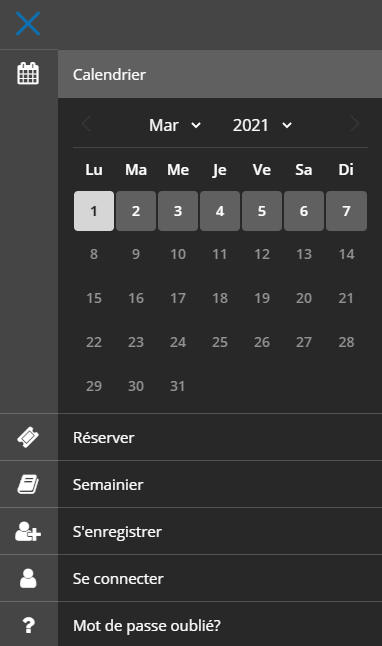
Before - Collapsed menu
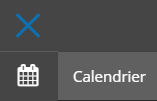
After - Expanded menu
Tip: To collapse the menu, click the blue cross (✕) at the top right of the expanded menu.
Sign in (log in)
Now that you are on your club's site, you need to log in with your personal login details to access your member area.
Step 1: Click the "LOG IN" button in the menu

Step 2: Enter the username and password provided by the club
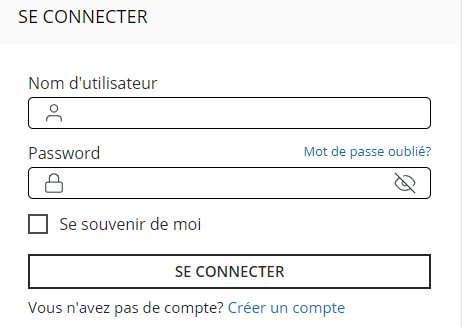
Step 3: Click "LOG IN" to confirm your login
💡 Tip: Keep your login details in a safe place. You will need them each time you log in.
If you have forgotten your password
Don't worry! You can reset your password in two ways:
Option 1: On the login page, click "Forgot password?"

Option 2: Click the question mark (?) in the basic vertical menu
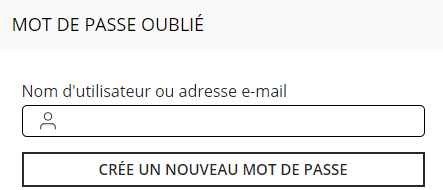
Enter your username and click "CREATE A NEW PASSWORD"
A new temporary password will be sent to the email address associated with your account. Use this password to log in, then change it to a secure personal password.
⚠️ Note: Check your "Spam" or "Junk mail" folder if you do not receive the email with your new password within a few minutes.
Log out
To log out of your account and securely close your session, click the logout icon.
Location: The logout icon is usually located at the top right of the interface or at the bottom of the vertical menu.

Position 1

Position 2
Click the logout icon to end your session. You will be redirected to the site's home page.
💡 Tip: Always remember to log out, especially if you are using a shared or public computer, to protect the privacy of your account.
Plugin.ch Tutorial — Member Access
Complete guide to accessing your club's program